
Install Cove on macOS
macOS 11 or later · Apple silicon or Intel · Last updated October 30, 2026
Two steps, about a minute: pick the build that matches your Mac, then clear Gatekeeper's one-time ask on first launch. Your hosts and keys live in an encrypted vault on your machine — nothing to configure before the first run.
1 · Pick your build
Not sure which Mac you have? Click the Apple menu () → About This Mac: anApple M-series chip means Apple Silicon; anIntel processor means Intel. Both builds run on macOS 11 Ventura or later.
2 · First launch — the one-time Gatekeeper ask
Cove isn't notarized with an Apple Developer signature yet, so Gatekeeper stops the very first launch. That is a generic gate for unsigned apps — not a malware finding. Here is the 30-second way through.
- 01
Install the app
Open the downloaded DMG and drag Cove into Applications. The first double-click is stopped by Gatekeeper — dismiss the dialog it shows; there is nothing to confirm in it yet.
- 02
Open Anyway in System Settings
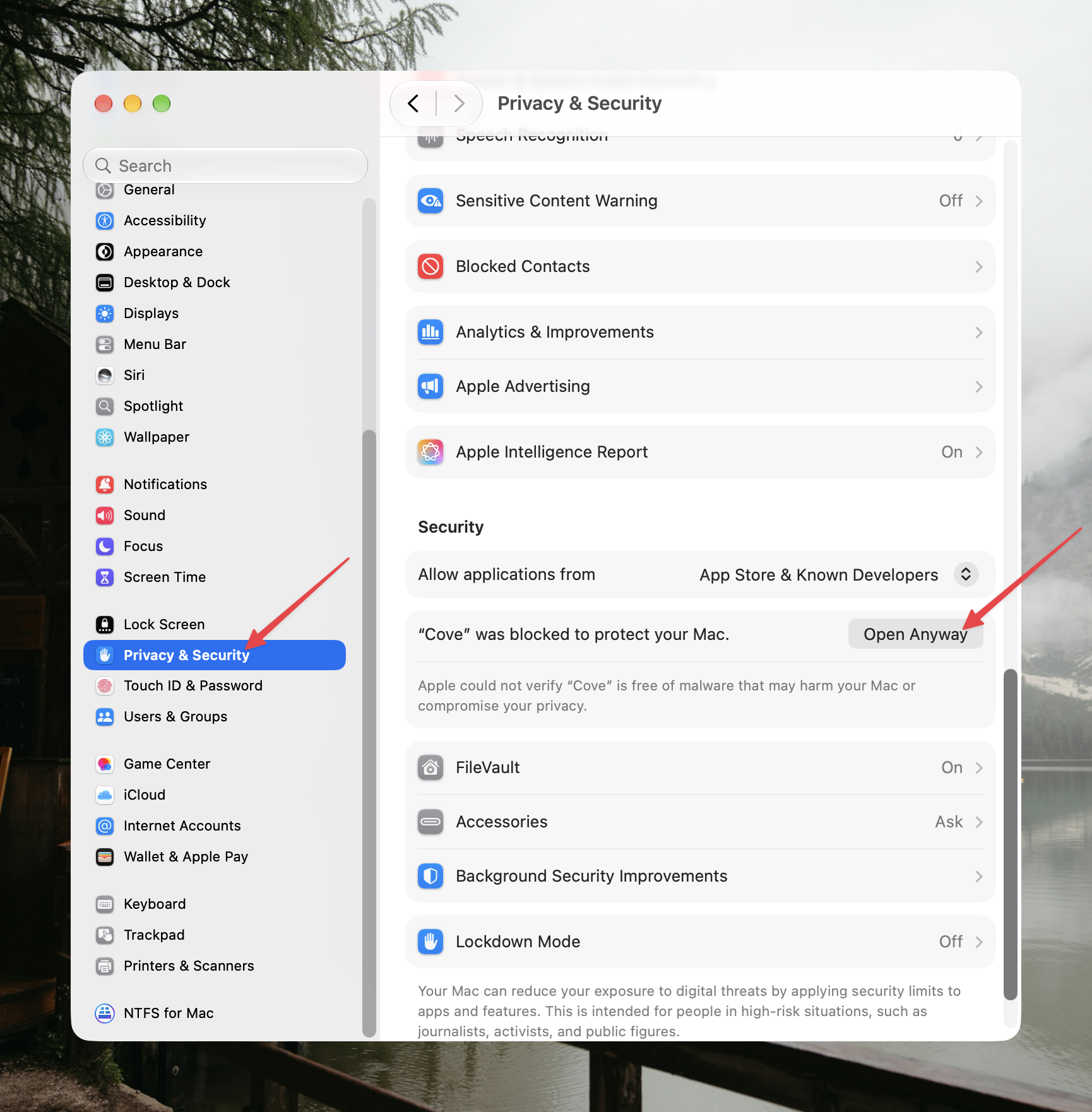
Go to System Settings → Privacy & Security and scroll to the Security section. Under “Allow applications from”, macOS notes that “Cove” was blocked — click Open Anyway.
- 03
Confirm — not Move to Trash
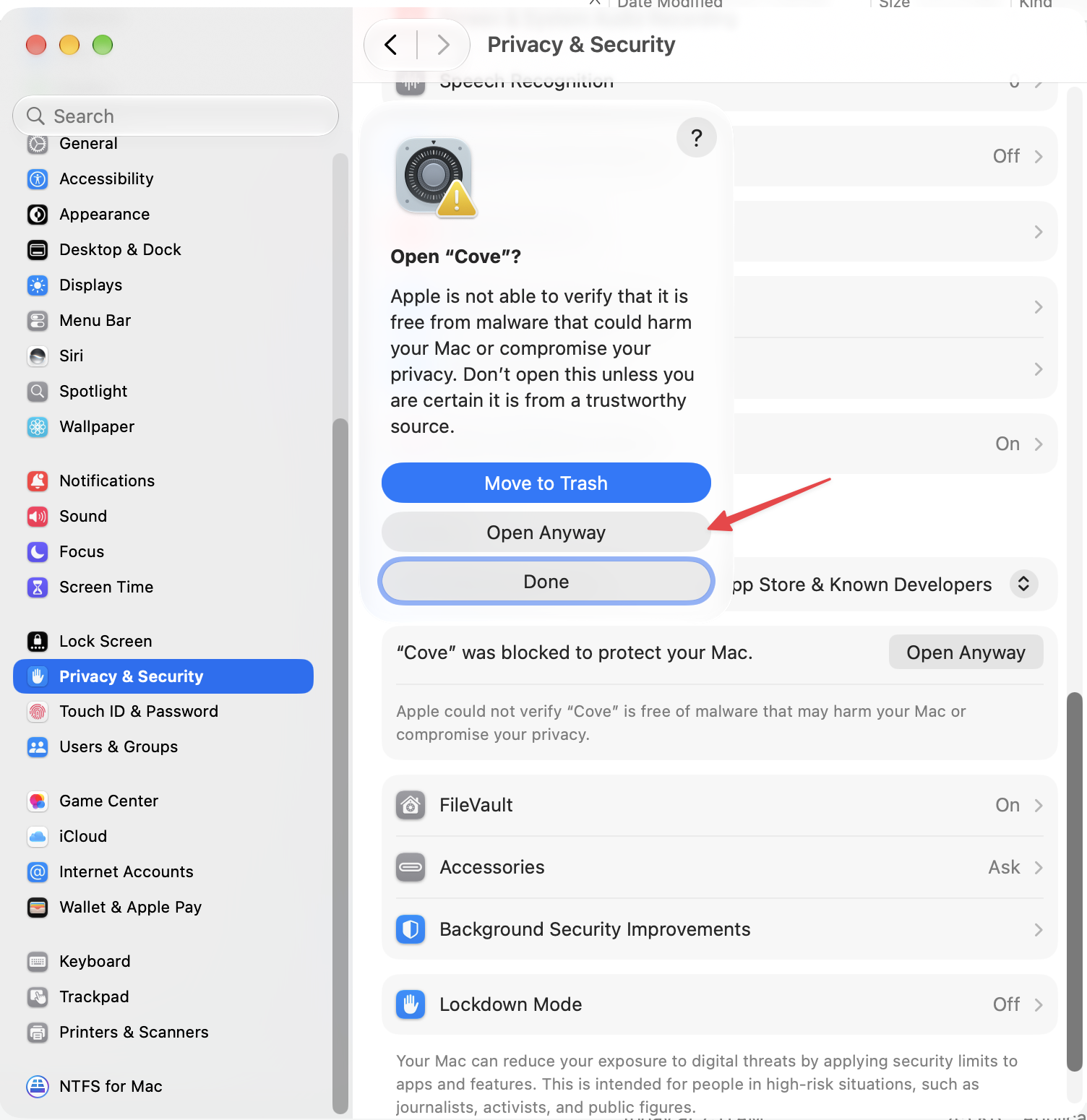
Authenticate with Touch ID or your login password, then click Open Anyway in the Open “Cove”? sheet. Cove starts, and macOS remembers the decision: the warning never appears again.
Terminal alternative
On macOS 15+ the old right-click → Open shortcut no longer bypasses Gatekeeper. Terminal users can skip the dialogs by clearing the download quarantine flag instead — only for apps from a source you trust:
xattr -dr com.apple.quarantine /Applications/Cove.appUpdating
Cove checks for updates in the background and applies them in-app — you don't need to revisit this page for new versions. Prefer manual updates? Download the new DMG and drag it over the old app in Applications: the vault and its data live separately and survive every update untouched.
Uninstalling
Drag Cove from Applications to the Trash — that removes the app itself. Your encrypted vault file stays behind in~/Library/Application Support until you delete it there, so an accidental uninstall never costs you your hosts and keys.
Why the warning at all?
Signed-and-notarized builds are on the roadmap — notarization requires an Apple Developer Program membership, and we're a small project funding itself through licenses. Until then, Gatekeeper treats Cove exactly like every unsigned app: it asks once, you confirm, and it never asks again for that install. Nothing about the warning suggests the app is dangerous — it means macOS simply hasn't seen an Apple-stamped signature.